

BP Doctor App: A Simple Setup Guide
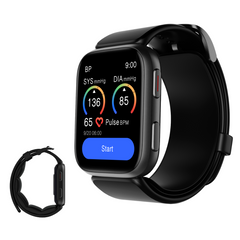
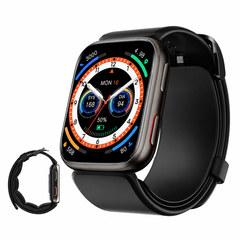
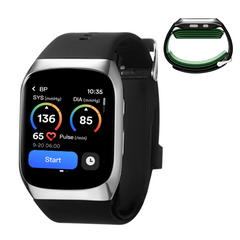
Your YHE blood pressure smartwatch can work on your wrist, but connecting it to the BP Doctor App makes it easier to keep your health information organized.
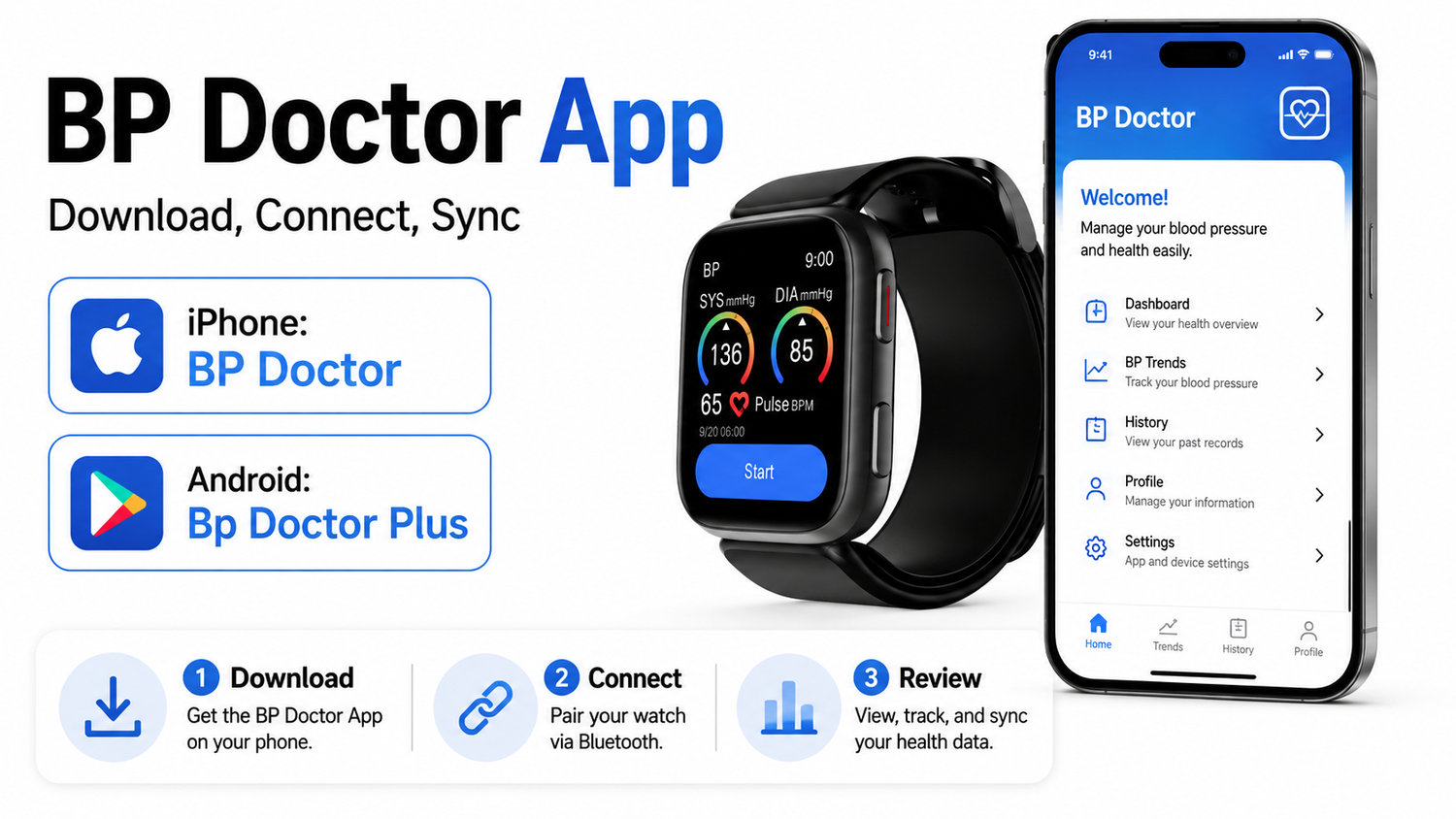
With the app, you can connect your watch, sync measurements and review more of your previous records on your phone.
If this is your first time using the app, don't worry.
Setup only takes a few steps.
1. Download the Official App
Always use the official YHE download links.
For iPhone
Download:
BP Doctor
Developer:
Yanhe Intelligent Technology (Hangzhou) Co., Ltd.
For Android
The official YHE Google Play link currently opens:
Bp Doctor Plus
If you are not sure which app to install, use the Download APP links on the official YHE website instead of downloading a similarly named third-party app.
2. Open the App and Create an Account
After installing the app, open it.
You can register or log in using the available account options.
During your first setup, the app may ask for basic information such as:
-
Gender
-
Height
-
Weight
-
Date of birth
Enter your information carefully.
This information is used by some of the health and activity features connected with your watch.
3. Turn On Bluetooth
Before connecting your watch:
Turn on Bluetooth on your phone.
Keep your phone and watch close together during setup.
Then open the BP Doctor App.
Do not rely only on your phone's normal Bluetooth settings.
The watch should also be added and bound inside the BP Doctor App.
4. Connect Your YHE Watch

For BP Doctor Fit / S7 models, the user manual provides several ways to connect the watch.
Method 1: Search for the Watch
Open the app and tap:
Add Device
The app will search for nearby compatible devices.
Find your YHE watch and follow the instructions to connect it.
Your watch may display a pairing request.
Confirm the connection on the watch.
Method 2: Scan the QR Code
You can also choose:
Scan Code to Add
The watch can display a device connection QR code.
Use the phone camera inside the app to scan the code and follow the pairing instructions.
Method 3: Select Your Model
The app may also offer:
Model Adding
Choose your YHE watch model and follow the instructions to complete the connection.
5. Wait for the Watch to Sync
Once the watch and phone are connected, give the app a moment to synchronize.
You do not need to keep looking at your phone while taking every blood pressure reading.
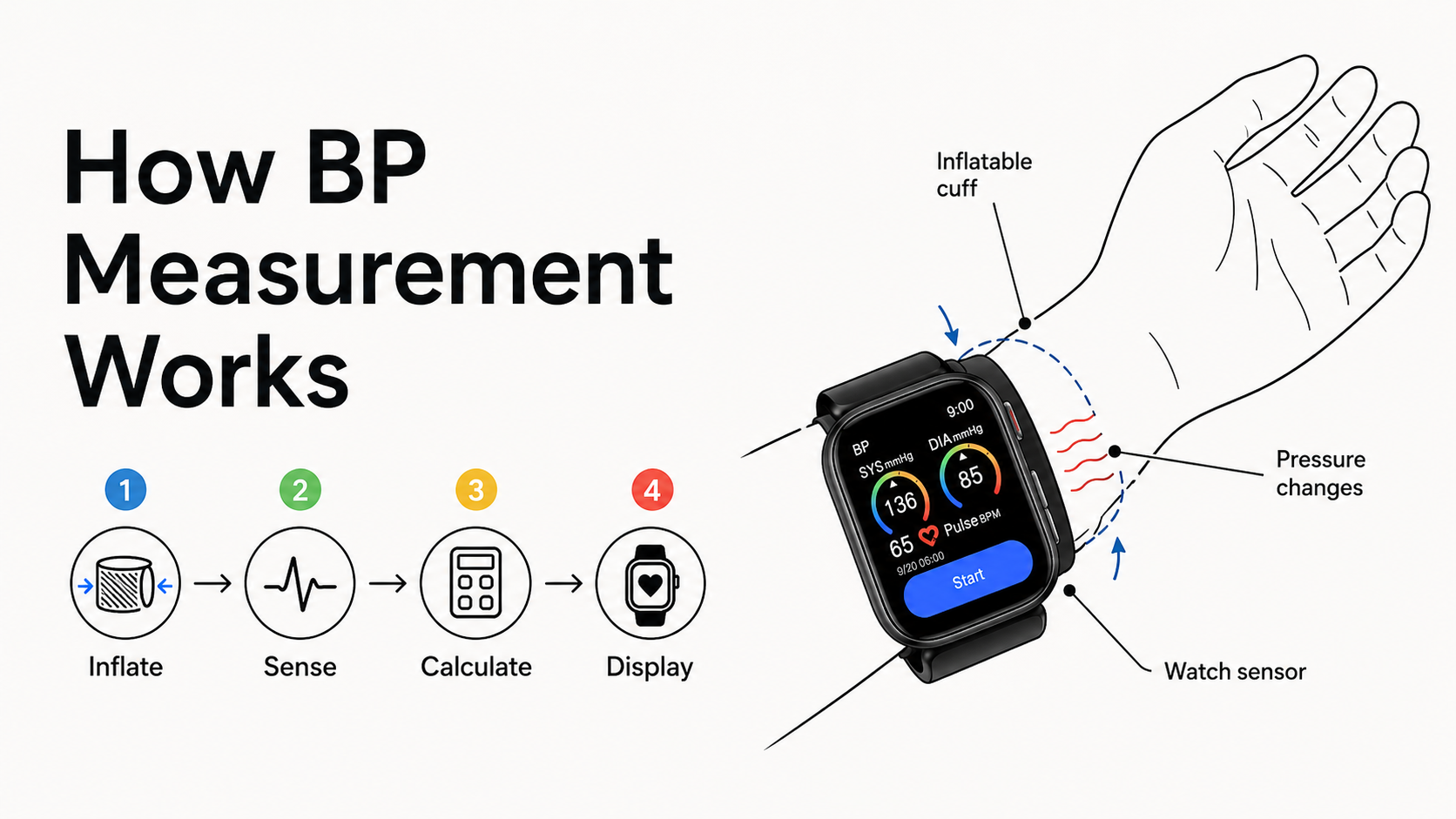
For normal blood pressure measurement:
Start the measurement on your watch.
Wear the watch correctly.
Keep your wrist at heart level.
Stay quiet and still.
Wait until the measurement is finished.
After the watch reconnects with the app, your available data can sync to your phone.
6. Review Your Blood Pressure History

One of the most useful reasons to connect the app is to keep more of your measurement history together.
On BP Doctor Fit / S7, the watch itself can display the latest 10 blood pressure measurements.
For more historical data:
Check the BP Doctor App.
Instead of focusing only on one number, reviewing measurements over time can make it easier to see how your readings change from day to day.
7. Check Your Other Health Information
Depending on your YHE watch model, the BP Doctor App may also organize other information from your smartwatch.
This may include:
-
Blood pressure records
-
Heart rate
-
Blood oxygen
-
Sleep
-
Activity and exercise information
-
Stress or other wellness information
Available features can vary by watch model and app version.
The most important thing is to connect the correct watch and allow it to finish syncing.
8. Use Reminders if You Need Them
A regular routine can make your blood pressure records easier to compare.
Some YHE watches support measurement reminders.
For example, you may choose a regular time in the morning, afternoon or evening.
A reminder does not mean the watch is continuously measuring your blood pressure.
You still need to wear the watch correctly and start or complete the measurement according to your watch instructions.
Do I Need My Phone Every Time I Measure?
No.
Your YHE blood pressure smartwatch can perform a blood pressure measurement directly from the watch.
The phone app is mainly useful for:
Connecting the watch
Synchronizing data
Viewing more historical records
Managing supported smartwatch features
So if your phone is not beside you, you can still use the blood pressure function on the watch.
You can sync available records later when the watch and phone reconnect.
If Your Watch Will Not Connect
If the app cannot find your watch, try these steps.
1. Check Bluetooth
Make sure Bluetooth is turned on.
2. Keep the Devices Close
Place your phone close to the watch during pairing.
3. Add the Watch Inside the App
Seeing the watch in your phone's Bluetooth menu does not always mean it has been properly bound to the BP Doctor App.
Open the app and use:
Add Device
or the QR-code connection method.
4. Make Sure the Watch Is Not Bound to Another Account
If the watch was previously connected to another BP Doctor account, it may need to be unbound first.
Important
Unbinding the watch may clear related test data on the watch and reset the device.
Make sure important records have been synchronized before unbinding whenever possible.
5. Restart and Try Again
If the connection still fails:
-
Close and reopen the app
-
Turn Bluetooth off and back on
-
Restart the watch
-
Restart your phone
-
Open the app and try Add Device again
App Connected? You're Ready.

Once setup is complete, everyday use is simple:
MEASURE → SYNC → REVIEW
MEASURE
Take your blood pressure reading on the watch.
SYNC
Open the BP Doctor App and allow the watch to connect.
REVIEW
Look back at your available measurement history and trends.
That's it.
You do not need to keep changing settings every time you take a reading.
One Important Reminder
The BP Doctor App is designed to help organize and display information from your YHE smartwatch.
Health information shown in the app is for personal reference and should not be used by itself for medical diagnosis or treatment.
If you are concerned about your blood pressure or repeatedly receive unusual readings, speak with a qualified healthcare professional.
If you have trouble connecting your YHE watch, contact YHE Customer Support:

Leave a comment
This site is protected by hCaptcha and the hCaptcha Privacy Policy and Terms of Service apply.